Gold Whale Empire — Documentation

Complete Technical Documentation — v1.0

Gold Whale Empire is a professional-grade Expert Advisor built exclusively for XAUUSD (Gold) on the M15 timeframe. It employs a 12-layer signal filtering system, intelligent position management with partial closes, dynamic trailing stops, and a daily profit target mechanism.

Developed and tested over a full year (January 2025 – January 2026) on a $2,000 account, Gold Whale Empire offers four distinct risk profiles to match every trading style—from ultra-conservative capital preservation to aggressive growth.

MagicNumber: 3690369 — Used to identify the EA's trades. Do not change unless running multiple instances.

System Requirements

1
MetaTrader 5 — Build 2361 or later. Available from your broker or metatrader5.com
2
Broker with XAUUSD — Any MT5 broker offering Gold (XAUUSD). Low spreads recommended. ICMarkets, Pepperstone, and Exness are popular choices.
3
Minimum Capital — $2,000 minimum for all profiles. Recommended starting capital for stable operation.
4
VPS (Recommended) — A Virtual Private Server ensures 24/5 uninterrupted operation. Low-latency VPS near your broker's server is ideal.
5
Timeframe — M15 ONLY. The EA will not generate signals on any other timeframe.

Installation Guide

1
Open the Market
In MetaTrader 5, go to the Market tab at the bottom of the terminal (or click Tools → Market from the top menu).
2
Search for the EA
In the Market search bar, type "Gold Whale Empire" and press Enter. You'll find it listed under Expert Advisors.
3
Purchase & Install
Click on the EA, then click the Buy button. After completing the payment through your MQL5.com account, the EA will be downloaded and installed automatically in your terminal.
4
Verify installation
In the Navigator panel (left side), expand Expert Advisors → Market. You should see "Gold Whale Empire" listed and ready to use.
5
Attach to Chart
Open a XAUUSD M15 chart, then drag "Gold Whale Empire" from the Navigator onto the chart.
6
Enable Algo Trading
In the dialog, go to Common tab and check "Allow Algo Trading". Also make sure the Algo Trading button on the MT5 toolbar is enabled. DLL imports are NOT required.
7
Configure & Go
Switch to the Inputs tab, set your preferred Risk Profile, and click OK. The dashboard should appear on your chart.

Input Parameters

General Settings

Magic Numberint3690369A unique ID that tags every trade opened by this EA. This is how MT5 knows which trades belong to Gold Whale Empire. Leave it as default. Only change it if you are running multiple copies of the EA on different charts (each copy needs a different number).
Maximum simultaneous positionsint2The maximum number of trades the EA can have open at the same time. Default is 2. Setting it to 1 means only one trade at a time (more conservative). Setting it higher allows more simultaneous trades but increases exposure and risk.
Minimum bars between tradesint5How many M15 candles must pass before the EA can open another trade. Default is 5 (= 1 hour 15 minutes). A higher value makes the EA wait longer between trades (fewer trades, more selective). A lower value allows trades closer together.
Min pips distance to open second tradedouble470.0The minimum price distance (in pips) between the first and second open trade. This prevents the EA from opening two trades at nearly the same price. A higher value means the second trade must be further away (safer). A lower value allows closer entries.

Risk Management

TP1 Ratio (vs SL)double3.0The Take Profit ratio relative to the Stop Loss. Default 3.0 means for every $1 you risk, you target $3 in profit (1:3 risk-reward). Increasing it (e.g. 4.0) aims for bigger wins but fewer trades will reach TP. Decreasing it (e.g. 2.0) means smaller but more frequent wins.
ATR Multiplier for SL/TPdouble3.0Controls how the EA calculates the Stop Loss distance using the ATR (Average True Range) indicator. ATR measures market volatility. Default 3.0 means the SL is placed at 3x the current ATR value. A higher multiplier gives wider stops (more room to breathe, but larger risk per trade). A lower multiplier gives tighter stops (less risk, but more chance of being stopped out early).

Lot Control

Lot calculation modeenumCalculate based on risk %How the EA calculates lot sizes. Calculate based on risk % (recommended): lots are calculated dynamically based on your account balance and the Risk Profile — as your account grows, lots grow with it. Fixed lot: every trade uses the exact same lot size regardless of balance. Most traders should stay on risk % mode.
Risk profileenumBalancedYour overall risk level. This is the most important setting in the EA. Safe: smaller lots, lower drawdown, steady growth. Balanced (recommended): moderate lots, good balance of growth and protection. Aggressive: larger lots, higher returns but higher drawdowns. Only used when Lot calculation mode is set to risk %.
Turbo Sizingdouble1.5A base risk value that gets multiplied by the Risk Profile you chose. The effective risk per trade is: Turbo Sizing × Profile Multiplier. For example, with default 1.5: Safe = 1.5 × 1.0 = 1.5% risk, Balanced = 1.5 × 2.0 = 3.0% risk, Aggressive = 1.5 × 3.5 = 5.25% risk. Increasing Turbo Sizing amplifies the risk across all profiles. Decreasing it reduces it. Only applies when Lot calculation mode is set to risk %.
Fixed lot sizedouble0.04The exact lot size for every trade when using Fixed lot mode. For example, 0.04 means every trade opens with 0.04 lots regardless of your account balance. Only applies when Lot calculation mode is set to Fixed lot.
Minimum lot sizedouble0.02The minimum lot size allowed when using Fixed lot mode. The EA will never open a trade smaller than this value. Only applies in Fixed lot mode — in Risk % mode, lots are calculated automatically by the Risk Profile and are not limited by this setting.
Maximum lot sizedouble0.20The maximum lot size allowed when using Fixed lot mode. The EA will never open a trade larger than this value. Only applies in Fixed lot mode — in Risk % mode, lots are calculated automatically by the Risk Profile and are not limited by this setting.

Partial Closes

TP progress to trigger (%)double15.0When the trade reaches this percentage of its Take Profit, the EA locks in the first partial profit by closing part of the position. Default 15% means: if TP is $300, the first partial triggers at $45 profit. A lower value secures profit sooner. A higher value waits longer before the first close.
Volume to close (%)double25.0The percentage of the position volume to close on the first partial. Default 25% means if you have 0.20 lots, it closes 0.05 lots and keeps 0.15 running. A higher value locks more profit early but leaves less to ride.
TP progress interval (%)double15.0After the first partial close, additional partials trigger every X% of TP progress. Default 15% means at 30%, 45%, 60%, etc. A smaller interval means more frequent partial closes (locking profit often). A larger interval means fewer partial closes (letting profits run longer).
Volume to close (%) — subsequentdouble25.0The percentage of the remaining position to close on each subsequent partial. Default 25%. Each close reduces the open volume progressively, securing profits step by step while keeping part of the trade running toward full TP.
Trailing margin (% of TP distance)double10.0The intelligent trailing stop margin, expressed as a percentage of the TP distance. Activates automatically after the first partial close. Default 10% means the trailing stop follows 10% behind the current price progress toward TP. A smaller value trails tighter (locks more profit but risks early exit). A larger value gives more room to breathe.

Profit & Protection

Close all on profit targetbooltrueWhen enabled, the EA monitors your total account profit on every tick. Once your combined open profit reaches the target percentage of your balance, it closes ALL open positions immediately. This is a powerful protection mechanism. Set to false to disable it (not recommended).
Profit target (% of balance)double9.0The profit target as a percentage of your account balance. Default 9% means if your balance is $2,000 and your open trades reach +$180 combined, the EA closes everything and locks the profit. A lower value (e.g. 5%) secures profit earlier. A higher value (e.g. 15%) lets trades run longer but with more exposure.

Trading Hours

Start hourint1The hour when the EA starts looking for trades (broker server time). Default is 1 (1:00 AM). The EA will NOT open any new trades before this hour. Adjust based on your broker's server timezone.
Start minuteint0The minute component of the trading start time. Default 0 means trading starts at exactly the Start hour.
End hourint22The hour when the EA stops looking for new trades (broker server time). Default is 22 (10:00 PM). After this hour, no new trades are opened. Existing trades remain open and are managed normally.
End minuteint0The minute component of the trading end time. Default 0 means trading stops at exactly the End hour.
Close early on FridaysbooltrueWhen enabled, the EA closes all open positions early on Fridays to avoid weekend gaps. Weekend gaps can cause significant losses if the market opens Monday at a very different price. Strongly recommended to keep this on.
Friday close hourint18The hour on Friday when the EA closes all positions (broker server time). Default 18 (6:00 PM). A lower value closes earlier (safer). A higher value gives trades more time but with more weekend gap risk.
Friday close minuteint0The minute component of the Friday close time. Default 0 means positions close at exactly the Friday close hour.

News Filter

Enable news filterboolfalseWhen enabled, the EA pauses trading around high-impact economic events (NFP, CPI, FOMC, etc.). Gold is extremely sensitive to news — prices can spike hundreds of pips in seconds. Default is off, but turning it on adds an extra layer of protection. It uses the native MT5 economic calendar, so there is no need to add or allow any external URL. No configuration is needed — it automatically detects the correct news times based on your broker's timezone. While inside a news window, a flashing red warning banner will appear on the chart indicating that trading is paused due to news, and the Experts tab will log which specific event is occurring. Once the news window ends, the banner disappears and the Experts tab will notify that trading has resumed.
Minimum news importanceenumHigh OnlyWhich news events to filter. High Only: avoids only major events like NFP, FOMC, CPI (recommended). Other options include medium and low importance events, but filtering too many events may significantly reduce trading opportunities.
Minutes to avoid BEFORE newsint30How many minutes BEFORE a news event the EA stops opening new trades. Default 30 minutes. A higher value (e.g. 60) is more cautious. A lower value (e.g. 15) allows trading closer to the event.
Minutes to avoid AFTER newsint15How many minutes AFTER a news event the EA waits before resuming trading. Default 15 minutes. This allows the post-news volatility to settle. A higher value waits longer for the market to calm down.
Open trades during newsenumKeep TradesWhat happens to trades that are already open when a news event starts. Keep Trades (default): existing trades stay open with their stop losses in place. Close Trades: the EA closes all open positions before the news event. Keep is recommended since trades already have stop losses for protection.

Technical Indicators

Require 3 EMAs aligned (trend filter)booltrueWhen enabled, the EA requires 3 Exponential Moving Averages (Fast, Slow, and Filter) to be aligned in the same direction before opening a trade. This ensures trades are taken only in the direction of the trend. Strongly recommended to keep this on. Disabling it allows trades in any direction, which increases risk.
Require H4 EMA confirmationbooltrueWhen enabled, the EA also checks the H4 (4-hour) timeframe EMA to confirm the trend direction. This is a higher-timeframe filter that prevents the EA from trading against the big picture trend. Recommended to keep on. Disabling it may increase trades but also false signals.
Fast EMA Periodint21The period of the Fast EMA (Exponential Moving Average). A smaller number makes it react faster to price changes. Default 21 is a well-known short-term trend period. Lowering it makes the EA more reactive (more signals, more noise). Increasing it makes it smoother (fewer signals, more reliable).
Slow EMA Periodint50The period of the Slow EMA. This represents the medium-term trend. Default 50. The EA looks for the Fast EMA to be above/below this one to confirm trend direction. Changing it shifts what the EA considers the medium-term trend.
Trend Filter EMA Periodint100The period of the Trend Filter EMA. This is the long-term trend reference. Default 100. All three EMAs (21, 50, 100) must be aligned for a trade to be considered. This is the strictest filter — it keeps you on the right side of the big trend.
Min EMA separation % (anti-sideways filter)double0.07The minimum percentage of separation between EMAs. This is the anti-sideways filter — when EMAs are too close together, the market is ranging (choppy) and signals are unreliable. Default 0.07% means the EA won't trade when EMAs are practically on top of each other. A higher value is more strict (avoids more choppy markets).
ADX Periodint14The period of the ADX (Average Directional Index) indicator, which measures trend strength. Default 14 is the standard. A lower period makes it more sensitive to short-term strength changes. A higher period smooths it out.
Minimum ADX Leveldouble25.0The minimum ADX value required to open a trade. ADX below 20 means weak/no trend, above 25 means a trend is present, above 50 means a very strong trend. Default 25 ensures the EA only trades when there is a real trend. A higher value (e.g. 30) is more selective. A lower value (e.g. 20) allows weaker trends.
RSI Periodint21The period of the RSI (Relative Strength Index) indicator, which measures momentum. Default 21. A lower period makes the RSI more sensitive (more signals). A higher period makes it smoother (fewer signals but more reliable).
RSI Oversold Leveldouble20.0The RSI level below which the market is considered oversold (potential buy zone). Default 20. A higher value (e.g. 30) triggers buy signals more easily. A lower value (e.g. 10) is more strict and only triggers in extreme oversold conditions.
RSI Overbought Leveldouble80.0The RSI level above which the market is considered overbought (potential sell zone). Default 80. A lower value (e.g. 70) triggers sell signals more easily. A higher value (e.g. 90) is more strict and only triggers in extreme overbought conditions.

Advanced Settings

Trade Commentstring"GoldWhaleEmpire"A text label attached to every trade opened by the EA. You can see it in MT5's Trade tab and History. Useful for identifying the EA's trades in your account. You can change it to any text you want, it does not affect trading.

Risk Profiles

All figures below are from testing on XAUUSD M15, January 2025 – January 2026, starting with $2,000 capital.

Metric Safe Balanced Aggressive
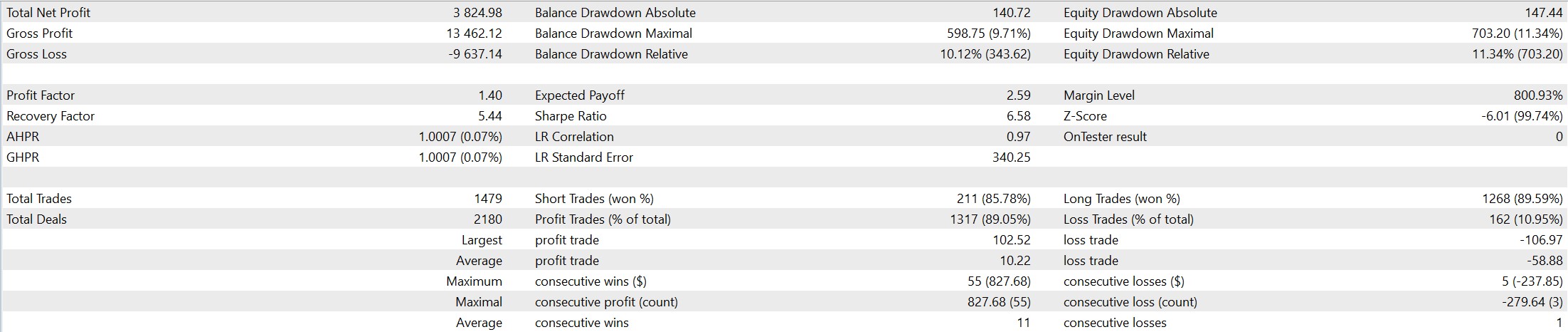
Net Profit$3,825 (+191%)$11,923 (+596%)$48,581 (+2,429%)
Profit Factor1.401.341.28
Win Rate89.05%92.08%93.95%
Max Drawdown9.71%19.22%31.86%
Sharpe Ratio6.586.125.83
Total Trades1,4792,0462,677
Recommended ForSteady growthActive tradersExperienced traders
Disclaimer: Past performance does not guarantee future results. Testing is conducted on historical data. Live trading conditions may differ. Always start with a demo account.

Tester Results by Profile

Gold Whale Empire Safe risk profile Strategy Tester results showing +191% return with 9.71% max drawdown on $2,000 XAUUSD account

Safe Profile — $2,000 starting capital, Jan 2025 – Jan 2026
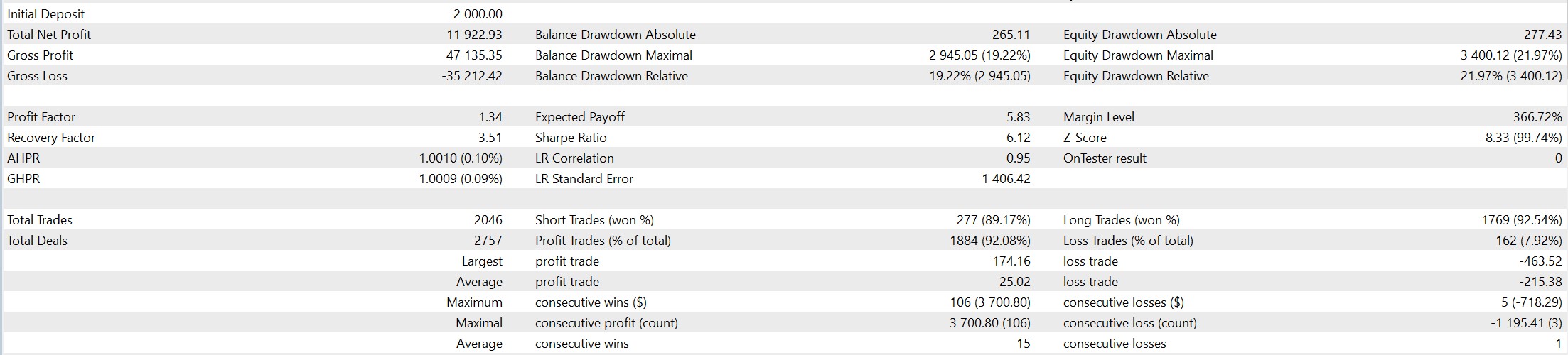
Gold Whale Empire Balanced risk profile Strategy Tester results showing +596% return with 19.22% max drawdown on $2,000 XAUUSD account

Balanced Profile — $2,000 starting capital, Jan 2025 – Jan 2026
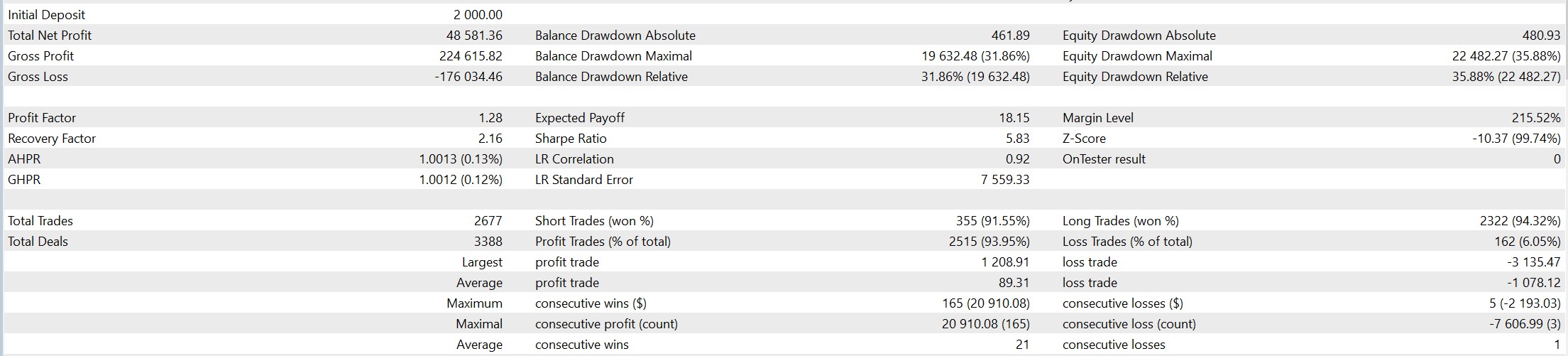
Gold Whale Empire Aggressive risk profile Strategy Tester results showing +2,429% return with 31.86% max drawdown on $2,000 XAUUSD account

Aggressive Profile — $2,000 starting capital, Jan 2025 – Jan 2026

Trading Logic

12-Layer Signal Filtering

Every potential trade passes through a proprietary 12-layer signal filter that combines multiple technical dimensions:

Trend Analysis — Multi-timeframe trend alignment ensures trades follow the dominant market direction.

Momentum Measurement — Momentum oscillators confirm the strength and sustainability of price moves.

Volatility Assessment — Volatility filters prevent entries during abnormally quiet or chaotic conditions.

Session Context — Time-based filters restrict trading to periods of historically higher gold liquidity.

DXY Correlation — USD Index analysis leverages the inverse gold-dollar relationship.

Each layer contributes to a composite Signal Score. The EA internally evaluates all layers and only triggers a trade when the combined analysis meets the required conditions.

Entry Logic

The EA continuously analyzes market conditions on every M15 bar close. When all signal layers and active filters agree, a market order is placed with calculated lot size, stop loss, and take profit levels. Lot sizing is determined dynamically based on the selected risk profile and current account equity.

Intelligent Exit System

Partial Close: When a trade reaches the TP progress to trigger percentage of its take profit (default 15%), the EA closes a portion of the position (default 25%). This locks in profit while leaving the remainder to run. Subsequent partial closes happen at every additional 15% of TP progress, closing 25% of the remaining volume each time.

Intelligent Trailing Stop: After the first partial close, a dynamic trailing stop activates with a configurable margin (default 10% of TP distance). The trailing stop ratchets up as price moves favorably, protecting accumulated gains without exiting prematurely on normal retracements.

Daily Profit Target: The EA monitors cumulative daily profit across all open positions. When total profit reaches the configured percentage of account balance (default 9%), ALL positions are closed simultaneously. This mechanism protects exceptional days from giving back gains.
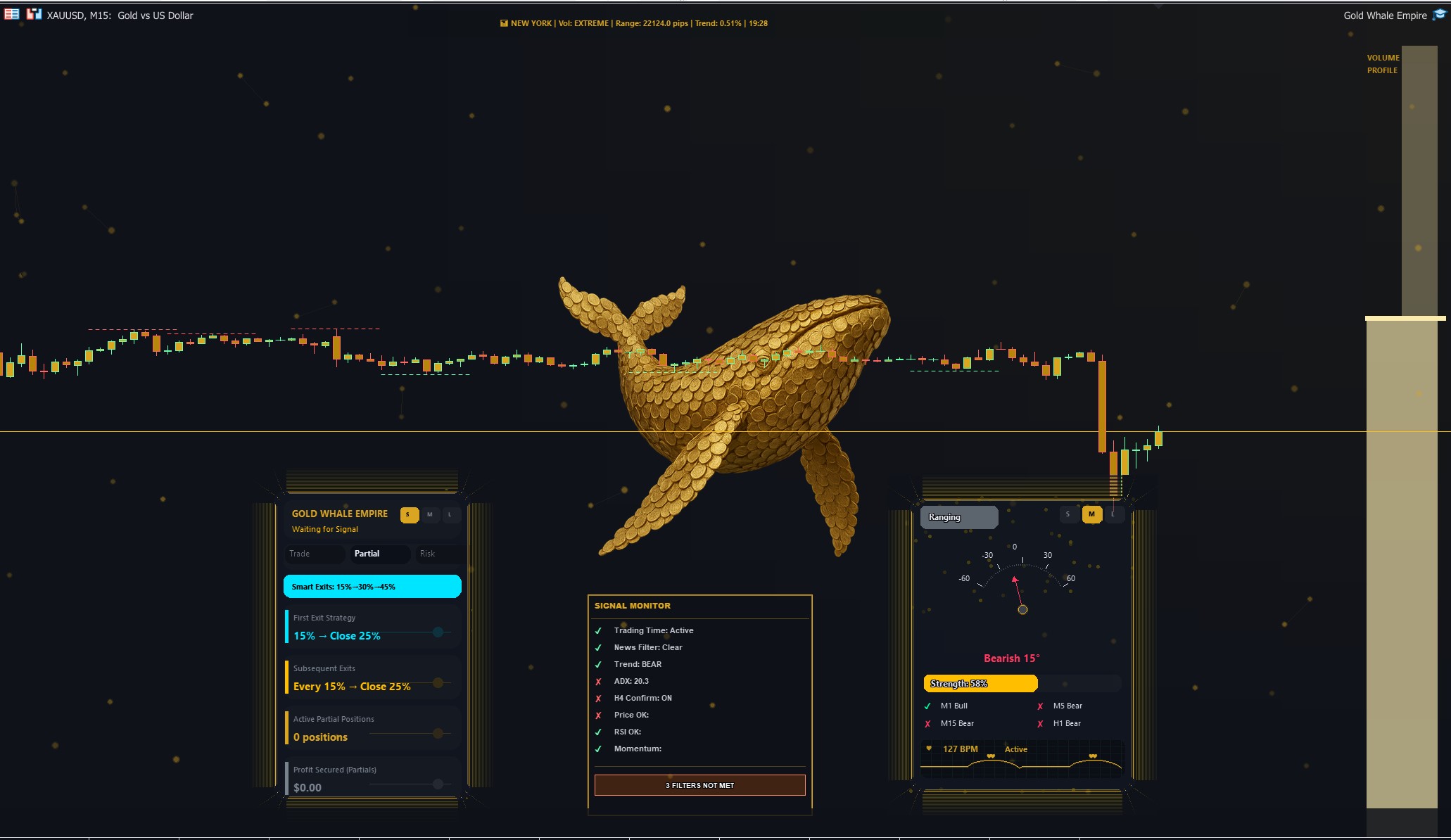
Gold Whale Empire intelligent exit system showing partial close panel with progressive profit-locking on XAUUSD trades

Intelligent Exit System: partial close panel showing progressive profit locking

Position Management

Every open position is evaluated on every tick. The EA tracks partial close status per trade and automatically recovers state after partial close operations. Stop losses are present on every trade from entry—the EA never holds unprotected positions.

Visual Components

Gold Whale Empire includes 8 custom visual components that transform your chart into a professional trading cockpit.

Neon Panel

The main dashboard displaying account balance, equity, daily profit/loss, active trade count, signal strength meter, and current risk profile. Updated in real-time on every tick.

Trend Compass

A circular compass indicator showing the current trend direction and strength. Green shading indicates bullish conditions; red indicates bearish. The needle rotates based on multi-timeframe trend analysis.

Gold Candle Skin

Custom candle rendering with gold-themed coloring. Bullish candles glow gold; bearish candles appear in deep blue. Makes chart reading intuitive at a glance.

Particle Field

Ambient floating particles whose density and speed reflect current market volatility. More particles and faster movement indicate higher volatility conditions.

Signal Monitor

Live signal analysis panel showing the current signal status, individual layer activity, and the last signal direction. Helps you understand why the EA is or isn't trading.

Session Info Ticker (Top Scrolling Text)

The scrolling text at the top of the chart. Displays the currently active trading session (London, New York, Asian), time until next session opens/closes, and session overlap status.

Market Ticker (Bottom Scrolling Text)

The scrolling text at the bottom of the chart. Shows real-time market data including DXY movement, XAUUSD spread, and other relevant correlated instruments.

Whale Watermark

A subtle, semi-transparent Gold Whale Empire branding watermark. Positioned to not interfere with chart analysis. Purely cosmetic.
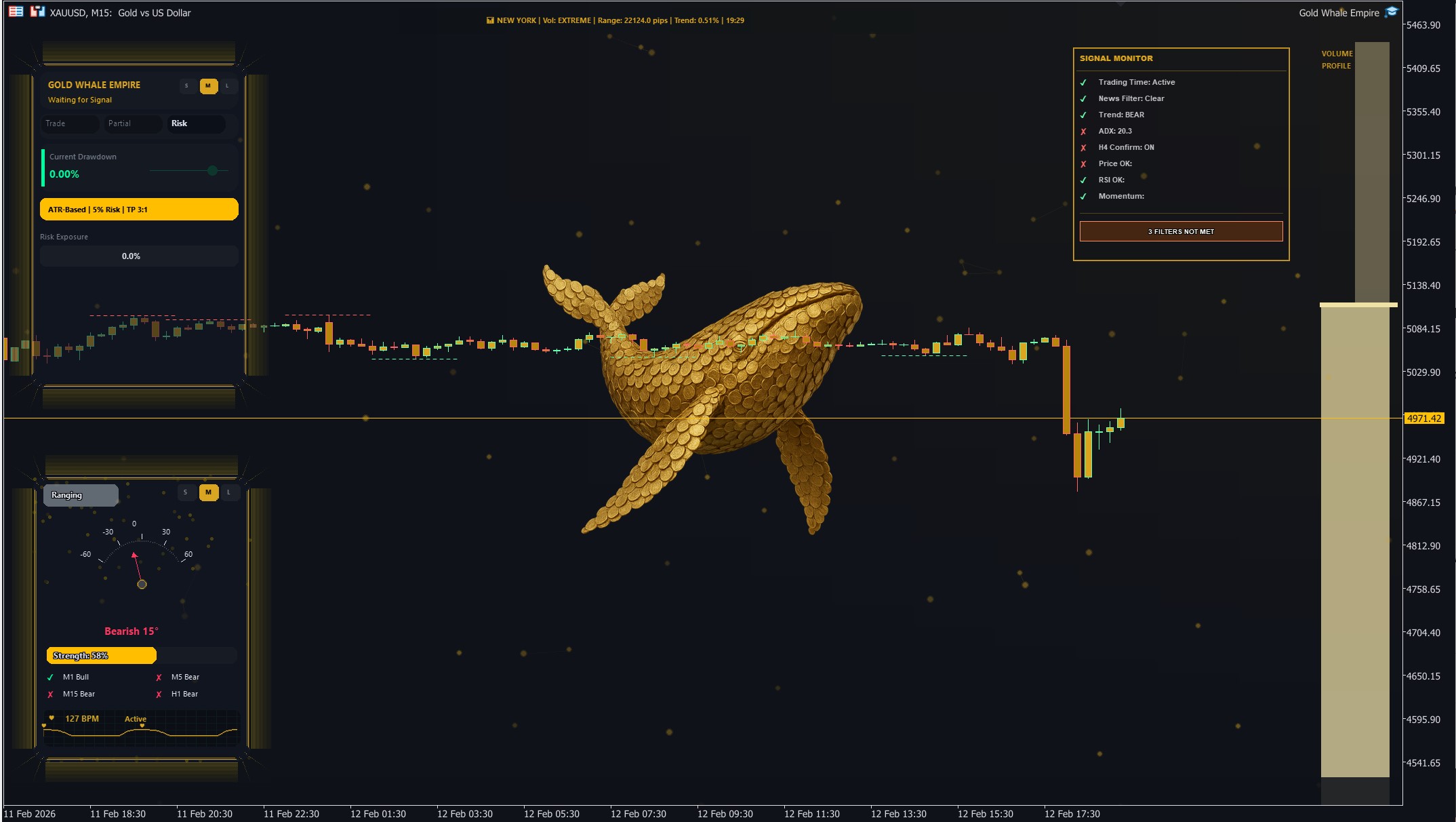
Draggable Panels: The Neon Panel, Trend Compass, and Signal Monitor are fully draggable. Simply click on the border/frame of any of these panels to grab it, drag it to your preferred position on the chart, and click again to release it.
Gold Whale Empire visual components on XAUUSD chart showing the Risk Panel and Signal Monitor in real-time

Risk Panel and Signal Monitor displaying real-time trading data on chart

Strategy Tester Guide

Running a Test

1
Open Strategy Tester: View → Strategy Tester (or Ctrl+R)
2
Select Gold Whale Empire as the Expert Advisor
3
Set Symbol to XAUUSD and Timeframe to M15
4
Set Date range (recommended: at least 6–12 months for meaningful results)
5
Set Deposit to your intended starting capital (e.g., $2,000)
6
Modeling: Every tick based on real ticks for most accurate results
7
Go to the Inputs tab and select the desired risk profile (Safe, Balanced, or Aggressive)
8
Click Start and wait for the test to complete
Experiment freely: You can modify inputs such as the risk profile to see how the EA behaves on your specific broker. You can also adjust partial close settings to suit your personal trading style. Every time you change a setting, run a new test to compare results.
Important: Remember that every time you change a strategy or modify inputs, you should always test first on a demo account before applying changes to a live account.
Note: Visual components (Neon Panel, Particle Field, etc.) are automatically disabled in the Strategy Tester for performance. This is normal behavior. Trading logic runs identically.

Interpreting Results

Perfect Curves Do Not Exist

There is no EA in the real market that wins absolutely every single month. This does not exist. If someone shows you a perfectly smooth upward curve with zero losing months, it is either fake, overfitted to historical data, or uses dangerous strategies like martingale or grid that will eventually destroy the account.

Gold Whale Empire is a realistic EA. It is perfectly normal to see months with controlled losses depending on your chosen risk profile, followed by months with excellent profits. This is how real trading works.

What Matters Is the Yearly Balance

Losses will always exist — that is an unavoidable part of trading. What truly matters is the overall result at the end of the year. The general balance, not any individual month, is what defines success.

GWE is designed to navigate the markets safely even during bad months. It accepts losses, manages them with strict stop losses on every trade, and uses intelligent partial closes to lock in profits progressively. The combination of disciplined capital management and partial close exits is what produces excellent yearly returns.

A Safe & Honest Approach

Gold Whale Empire does not use martingale, grid, averaging down, or any strategy that can blow up an account. Every trade has a stop loss from the moment it opens. Risk is always controlled.

If you chase perfect curves, sooner or later you will realize they don't exist in real trading. GWE gives you something better: a realistic, sustainable system that protects your capital in bad times and delivers excellent profitability over time.

Key Metrics to Evaluate

Profit Factor > 1.0 = profitable system. The higher, the better. Our profiles range from 1.28 to 1.40.

Max Drawdown = largest peak-to-trough decline. Lower is safer. Safe keeps this under 20%.

Sharpe Ratio > 2.0 = excellent risk-adjusted returns. All our profiles exceed 5.0.

Win Rate = percentage of profitable trades. Ranges from 89% (Safe) to 94% (Aggressive).

Troubleshooting

No trades are opening
Check: (1) Algo Trading is enabled on the toolbar AND also allowed in the EA's Common tab (right-click EA on chart → Properties → Common → "Allow Algo Trading" must be checked). (2) Current time is within the configured trading hours (default 1:00–22:00 broker time). (3) If the news filter is enabled, you may be inside a news avoidance window — check for the flashing red banner on the chart. (4) Watch the Signal Monitor panel for signal activity. (5) Ensure you're on XAUUSD M15.
Too many trades opening
Try narrowing the trading hours (Start hour / End hour) to reduce the trading window. You can also switch to a more conservative risk profile (e.g., Safe) to reduce trade frequency.
Test results differ from documentation
Slight variations are normal due to different broker data feeds, spread models, and tick data quality. Use "Every tick based on real ticks" modeling for the most accurate results. Ensure your testing period matches (Jan 2025 – Jan 2026).

Using the Experts Tab

The Experts tab in MetaTrader 5 is your best friend for troubleshooting. Gold Whale Empire logs detailed information about its initialization, parameter verification, and trading decisions there.
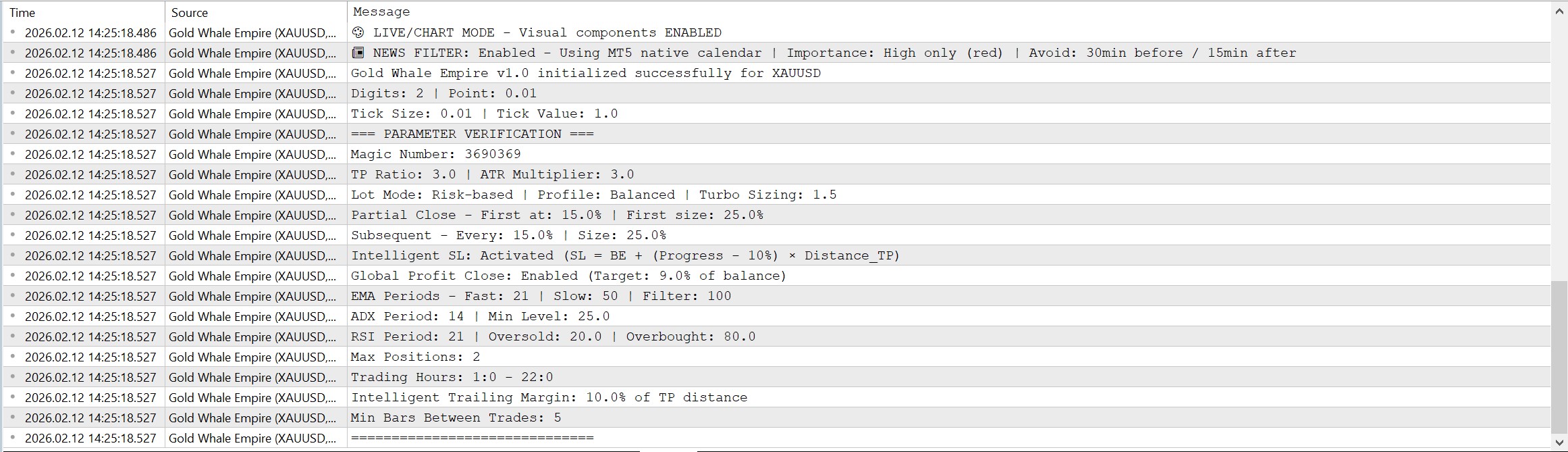
MetaTrader 5 Experts tab showing Gold Whale Empire EA initialization logs, parameter verification, and trading activity details

The Experts tab displays EA initialization logs and parameter verification